Job notifications
Set up notifications in dbt platform to receive alerts about the status of a job run. You can choose to be notified by one or more of the following job run statuses:
- Succeeds option — A job run completed successfully with no warnings or errors.
- Warns option — A job run encountered warnings from data tests or source freshness checks (if applicable).
- Fails option — A job run failed to complete.
- Is canceled option — A job run is canceled.
Notification options
dbt platform currently supports the following notification channels:
- Email — Available for all users
- Slack (user-linked) — Available for all users
- Slack (account-level) — Available in private beta. To request access, contact your account manager.
- Microsoft Teams — Available in private beta. To request access, contact your account manager.
Email notifications
You can receive email alerts about jobs by configuring the dbt email notification settings.
Prerequisites
- You must be either a developer user or an account admin to configure email notifications in dbt. For more details, refer to Users and licenses.
- As a developer user, you can set up email notifications for yourself.
- As an account admin, you can set up notifications for yourself and other team members.
Configure email notifications
-
Select your profile icon and then click Notification settings.
-
By default, dbt sends notifications to the email address that's in your User profile page.
If you're an account admin, you can choose a different email address to receive notifications:
- Under Job notifications, click the Notification email dropdown.
- Select another address from the list. The list includes Internal Users with access to the account and External Emails that have been added.
- To add an external email address, click the Notification email dropdown
- Click Add external email.
- Enter the email address, and click Add user.
After adding an external email, it becomes available for selection in the Notification email dropdown list. External emails can be addresses that are outside of your dbt account and also for third-party integrations like channels in Microsoft Teams and PagerDuty email integration.
note
External emails and their notification settings persist until edited or removed even if you remove the admin who added them from the account.
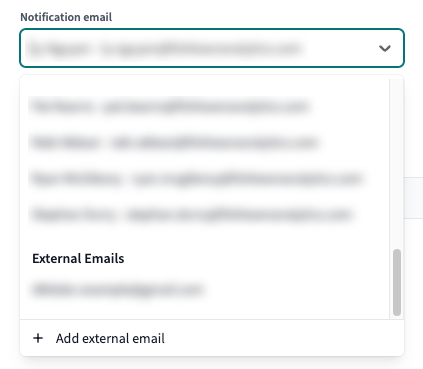 Example of the Notification email dropdown
 -
Select the Environment for the jobs you want to receive notifications about from the dropdown.
-
Click Edit to configure the email notification settings. Choose one or more of the run statuses for each job you want to receive notifications about.
-
When you're done with the settings, click Save.
As an account admin, you can add more email recipients by choosing another Notification email from the dropdown, Edit the job notification settings, and Save the changes.
To set up alerts on jobs from a different environment, select another Environment from the dropdown, Edit those job notification settings, and Save the changes.
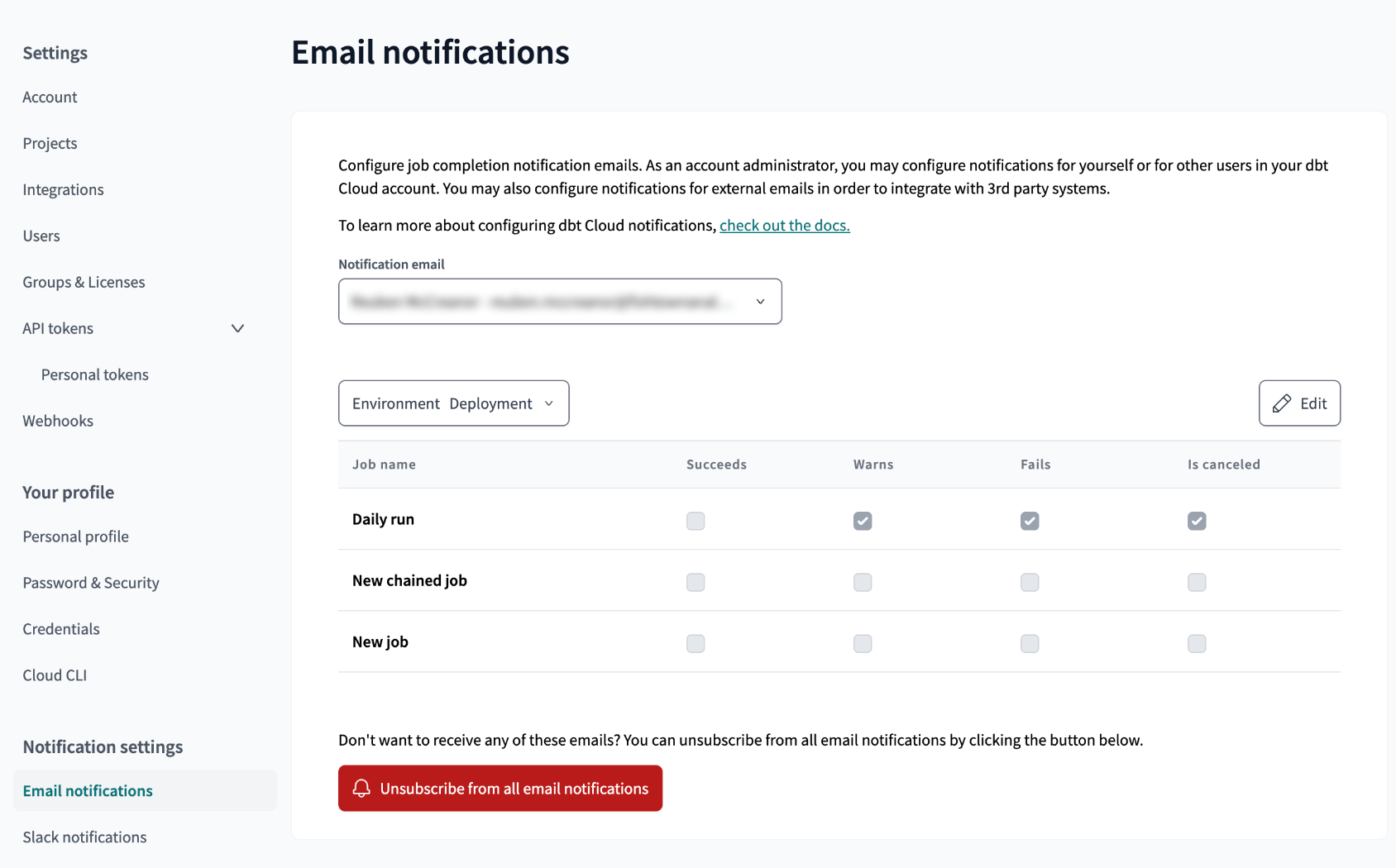 Example of the Email notifications page
Unsubscribe from email notifications
- Select your profile icon and click on Notification settings.
- On the Email notifications page, click Unsubscribe from all email notifications.
Slack notifications (user)
You can receive Slack alerts about jobs by setting up the Slack integration and then configuring the dbt Slack notification settings. dbt integrates with Slack via OAuth to ensure secure authentication.
This is the current Slack integration available for all users and set at the user level, not to be confused with the Slack notifications at the account level feature, which is available only in private beta. To request access, contact your account manager. Only refer to these instructions if you don't have access to the private beta features.
Virtual Private Cloud (VPC) admins must contact support to complete the Slack integration.
If there has been a change in user roles or Slack permissions where you no longer have access to edit a configured Slack channel, please contact support for assistance.
Prerequisites
- You have a Slack workspace that you want to receive job notifications from.
- You must be a Slack Workspace Owner.
- You must be an account admin to configure Slack notifications in dbt. For more details, refer to Users and licenses.
- The integration only supports public channels in the Slack workspace.
Set up the Slack integration
- Select Account settings and then select Integrations from the left sidebar.
- Locate the OAuth section with the Slack application and click Link.
 Link for the Slack app
Logged in to Slack
If you're already logged in to Slack, the handshake only requires allowing the app access. If you're a member of multiple workspaces, you can select the appropriate workspace from the dropdown menu in the upper right corner.
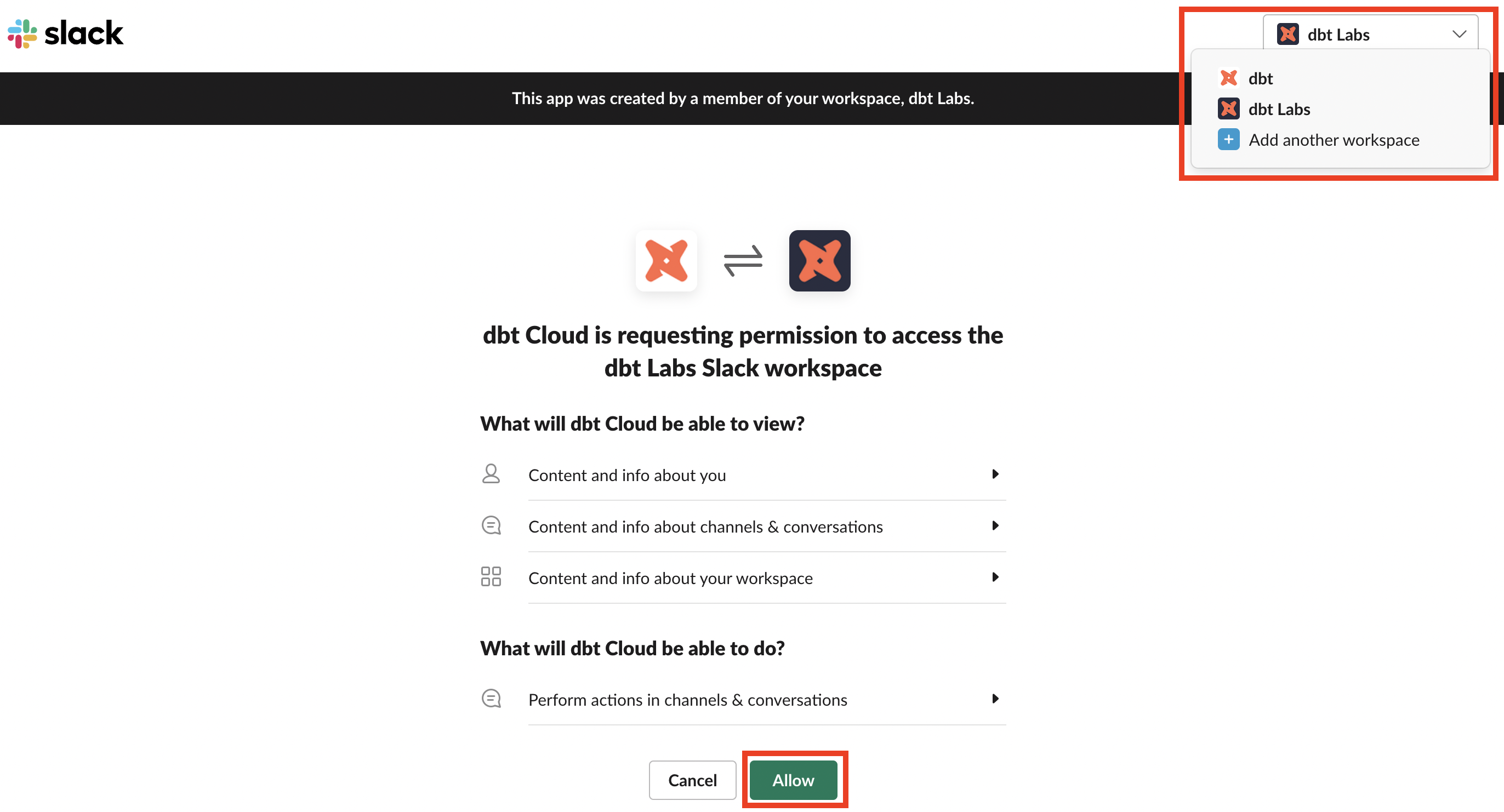 Allow dbt access to Slack
Logged out
If you're logged out or the Slack app/website is closed, you must authenticate before completing the integration.
- Complete the field defining the Slack workspace you want to integrate with dbt.
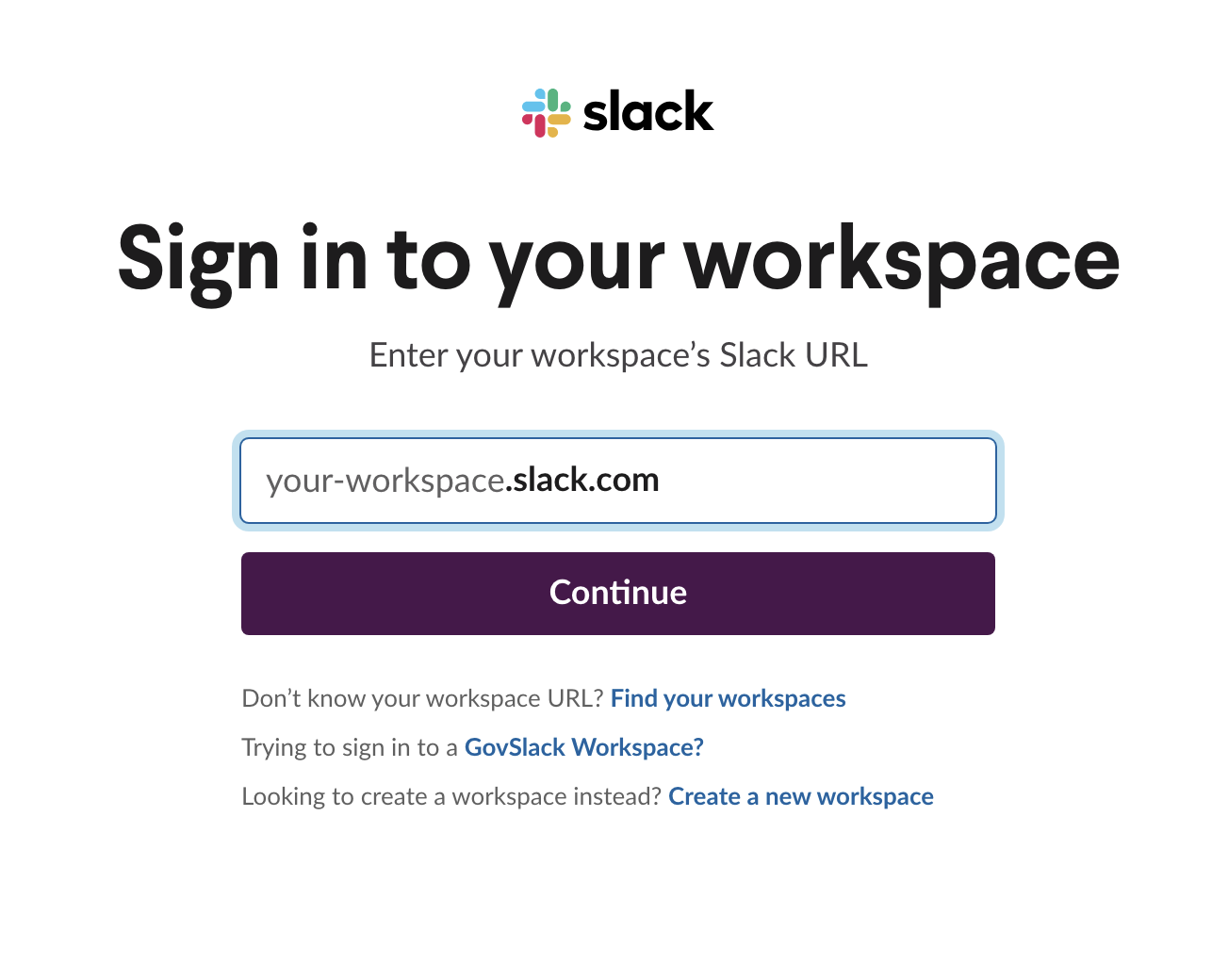 Define the workspace
 - Sign in with an existing identity or use the email address and password.
- Once you have authenticated successfully, accept the permissions.
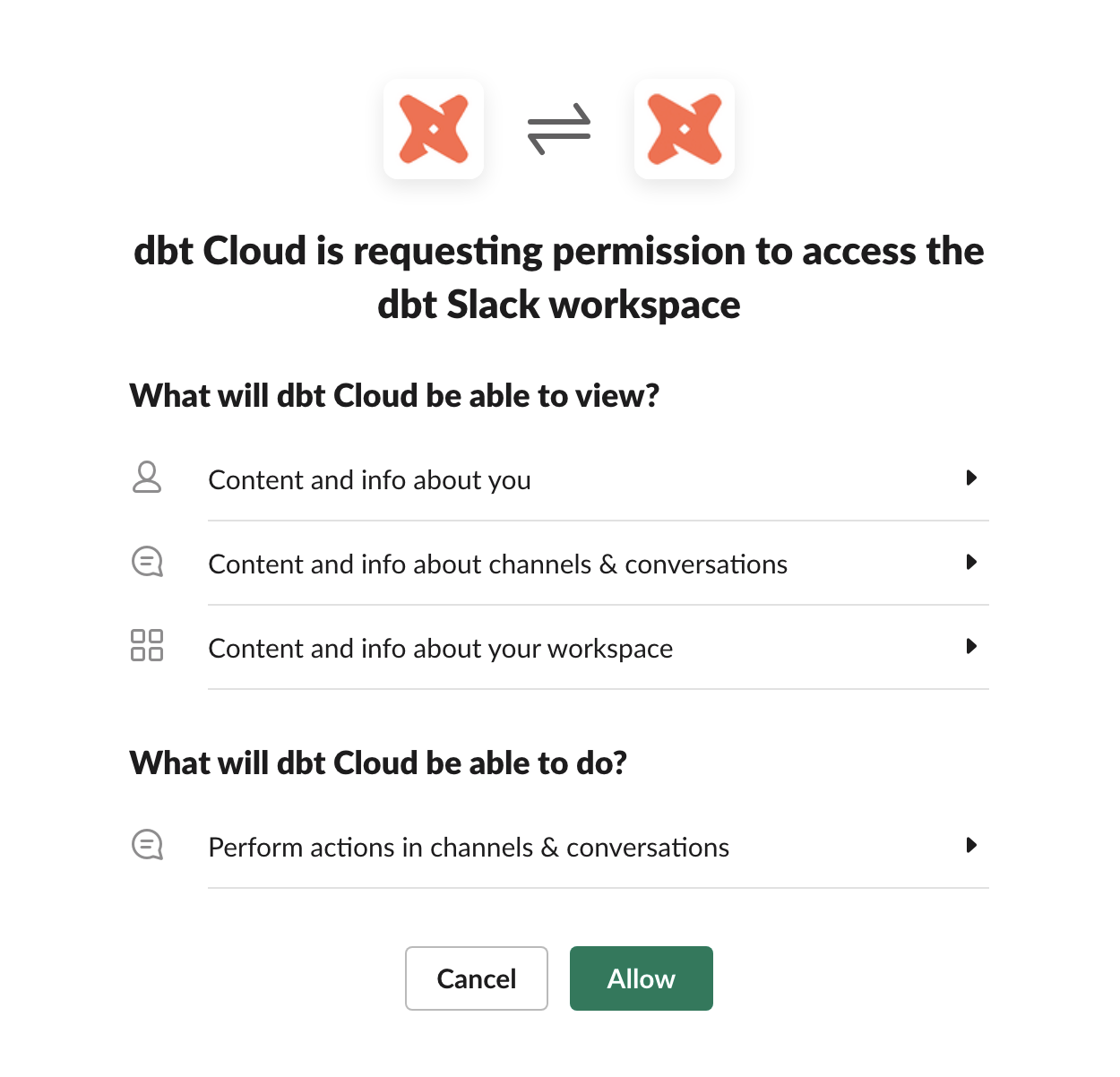 Allow dbt access to Slack
Configure Slack notifications
-
Select your profile icon and then click on Notification settings.
-
Select Slack notifications in the left sidebar.
-
Select the Notification channel you want to receive the job run notifications from the dropdown.
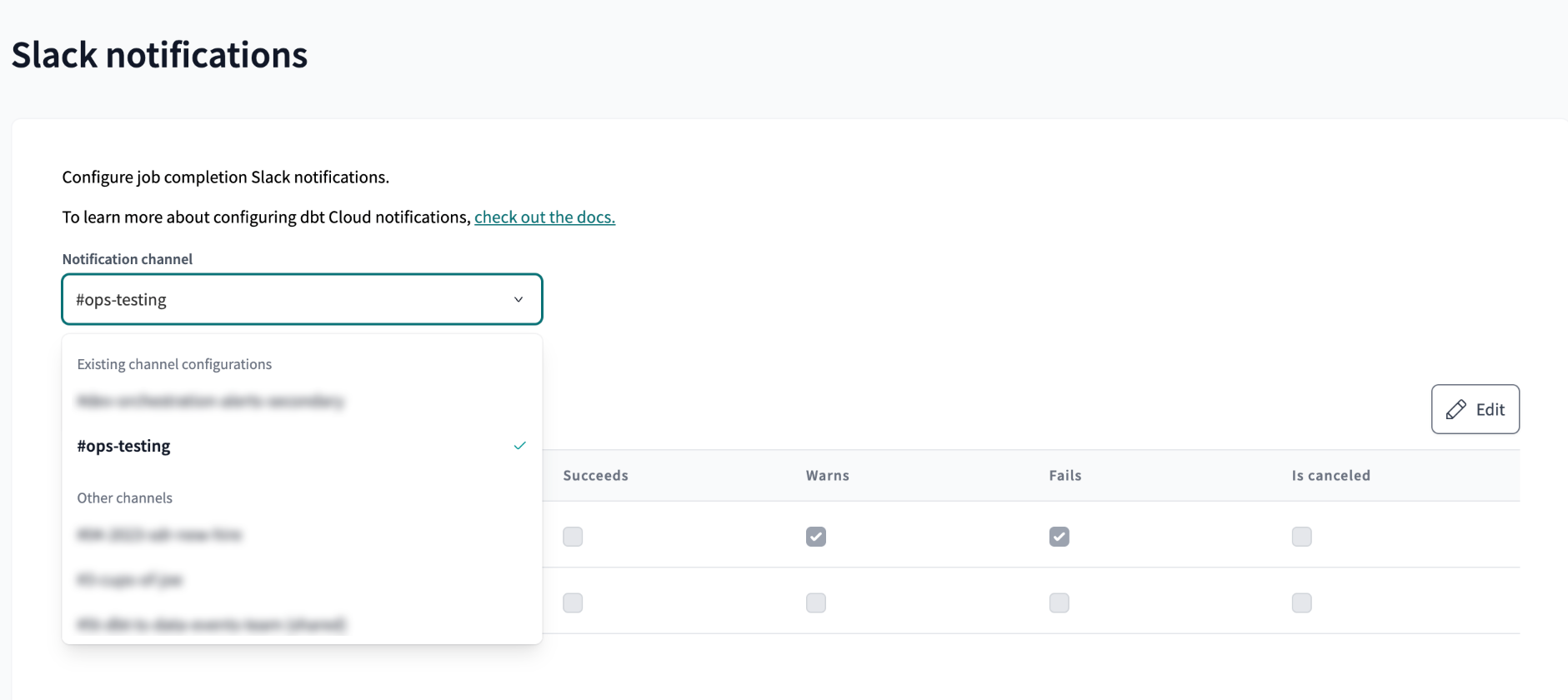 Example of the Notification channel dropdown
 -
Select the Environment for the jobs you want to receive notifications about from the dropdown.
-
Click Edit to configure the Slack notification settings. Choose one or more of the run statuses for each job you want to receive notifications about.
-
When you're done with the settings, click Save.
To send alerts to another Slack channel, select another Notification channel from the dropdown, Edit those job notification settings, and Save the changes.
To set up alerts on jobs from a different environment, select another Environment from the dropdown, Edit those job notification settings, and Save the changes.
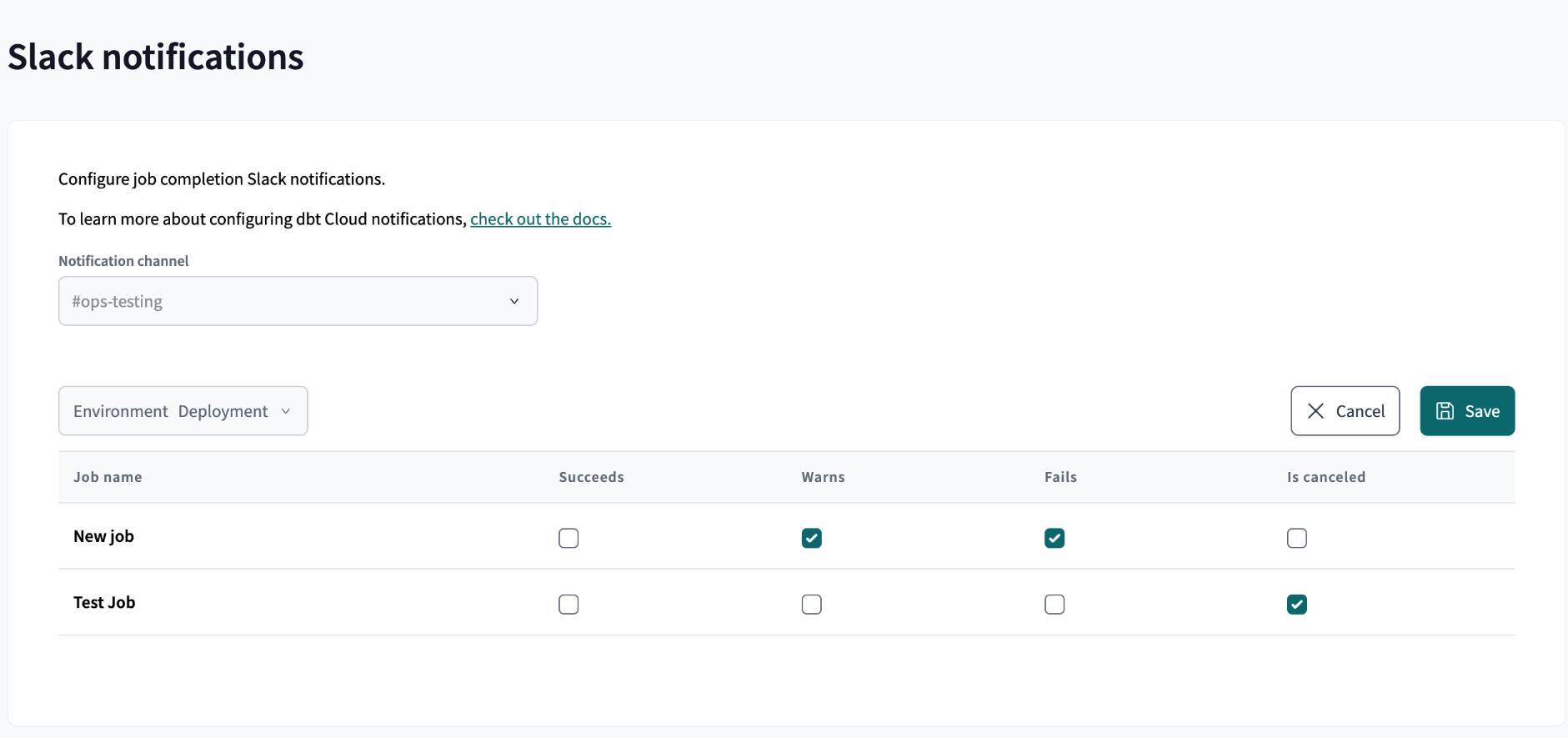 Example of the Slack notifications page
Disable the Slack integration
- Select Account settings and on the Integrations page, scroll to the OAuth section.
- Click the trash can icon (on the far right of the Slack integration) and click Unlink. Channels that you configured will no longer receive Slack notifications. This is not an account-wide action. Channels configured by other account admins will continue to receive Slack notifications if they still have active Slack integrations. To migrate ownership of a Slack channel notification configuration, have another account admin edit their configuration.
Slack notifications (account) Private beta
Configuring Slack notifications at the account level is currently available in private beta. To request access, contact your account manager.
Integrate Slack with dbt platform at the account level to receive job notifications in Slack. dbt integrates with Slack via OAuth to ensure secure authentication. Only refer to these instructions if you have access to the private beta feature.
Prerequisites
- You have a Slack workspace that you want to receive job notifications from.
- A dbt platform account admin must link the Slack app at the account level.
- To install the Slack app to a workspace, your Slack org must permit app installations. In some orgs this requires a Slack admin approval.
After an account admin links the Slack app for the account, any licensed user in the account can configure Slack job notifications.
Channels supported:
- Public channels are supported by default
- Private channels are supported if the dbt Slack app is invited to the channel.
Set up the Slack integration
- Select Account settings and then select Integrations from the left sidebar.
- Locate the OAuth section with the Slack application and click Link.
Link for the Slack app
Logged in to Slack
If you're already logged in to Slack, the integration only requires allowing the app access. If you're a member of multiple workspaces, you can select the appropriate workspace from the dropdown menu in the upper right corner.
Allow dbt access to SlackLogged out
If you're logged out or the Slack app/website is closed, you must authenticate before completing the integration.
-
Complete the field defining the Slack workspace you want to integrate with dbt.
Define the workspace -
Sign in with an existing identity or use the email address and password.
-
Once you have authenticated successfully, accept the permissions.
Allow dbt access to Slack
Configure Slack notifications
Configure the Slack channel you want to receive job notifications from.
- Select your profile icon and then click on Notification settings.
- Select Slack notifications in the left sidebar.
- From the first dropdown, select the Notification channel you want to receive the job run notifications.
Example of the Notification channel dropdown
- From the second dropdown, select the Environment for the jobs you want to receive notifications about.
- Click Edit to configure the Slack notification settings. Choose one or more of the run statuses for each job you want to receive notifications about.
- When you're done with the settings, click Save.
- To send alerts to another Slack channel, select another Notification channel from the dropdown, Edit those job notification settings, and Save the changes.
- To set up alerts on jobs from a different environment, select another Environment from the dropdown, Edit those job notification settings, and Save the changes.
Example of the Slack notifications page
That's it! Your Slack channel is now set up to receive dbt job notifications at the account level. This integration is now available throughout the account for all licensed users.
Disable the Slack integration
In this step, you'll disable the Slack integration and remove the account-level Slack credentials. You can always re-enable the integration by following the Set up the Slack integration steps.
- Select Account settings and on the Integrations page, scroll to the OAuth section.
- Click the x icon (on the far right of the Slack integration) and click Unlink.
- This removes the account-level Slack credentials. All Slack notifications that rely on the account-level integration will stop sending.
- If any legacy, user-linked Slack integrations still exist, those notifications may continue until the legacy link is removed. We recommend migrating to the new account-level app and removing legacy links.
Microsoft Teams notifications Private beta
Configuring Microsoft Teams notifications is currently in private beta. To request access, contact your account manager.
You can receive Microsoft Teams alerts for your dbt jobs by connecting your Teams account to the dbt platform, and configuring your notification preferences.
dbt integrates with Teams through Microsoft Entra to provide secure authentication. Only refer to these instructions if you have access to the private beta feature.
Prerequisites
Before you begin:
- You must have a dbt platform account
- You have a Microsoft Teams account that you want to receive job notifications from.
- Make sure you have permission to view the Account integrations and Job notifications pages in dbt platform.
Set up Microsoft Teams
To enable Microsoft Teams job notifications, complete the following sections:
- Link dbt platform account to Teams — A user-level connection that links an individual dbt platform account (or a dedicated service account) to a Microsoft Teams user profile within your tenant.
- Configure Teams notifications — Configures which Teams channels receive job notifications.
- Disable the Teams integration (optional) — Remove or reset the connection between dbt platform and Microsoft Teams.
Link dbt platform account to Teams
You can link any Teams user account from your tenant, but we recommend creating a dedicated account just for posting dbt notifications. During the OAuth process, you’ll need to sign in to a Microsoft account to complete the integration.
- If you’re logged into a single Microsoft account, the integration will complete automatically.
- If you’re logged into multiple accounts (or none), you’ll be prompted to select or log in to one.
Image of the Microsoft account selection popup
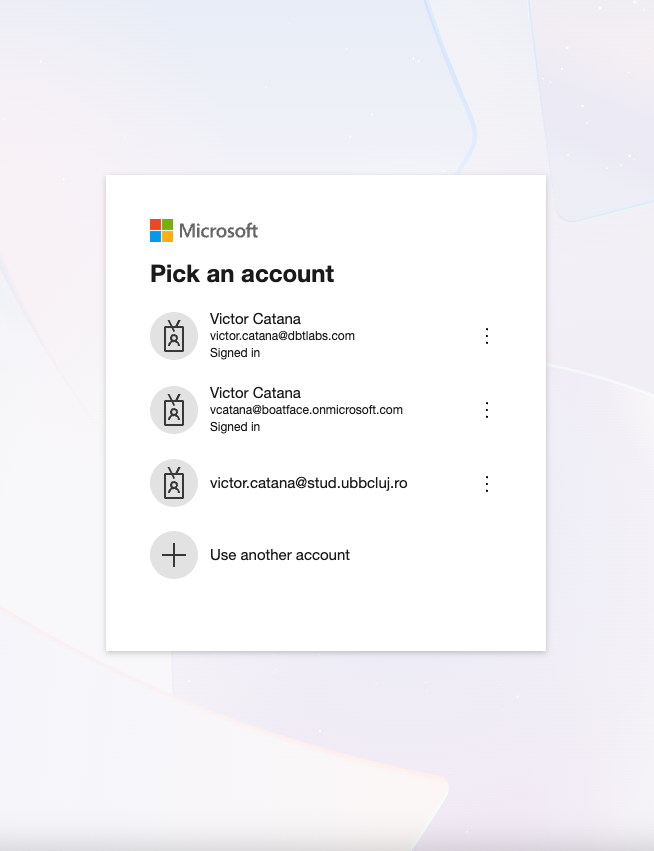 Example of the Microsoft account popup
To link your dbt platform account to Microsoft Teams:
- In dbt platform, go to the Account settings page by clicking on your account name and selecting Account settings.
- In the left sidebar, select Integrations.
- Scroll to the OAuth section.
- Next to Teams and click on the Link button.
- After doing this, you’ll either be prompted to choose your Microsoft account before completing the setup, or return directly to the dbt platform with your Teams profile linked.
- Your dbt platform account is now linked to Microsoft Teams!
dbt will now add the dbt-cloud-integration app to your Microsoft Entra tenant. This app manages authentication requests and permissions securely.
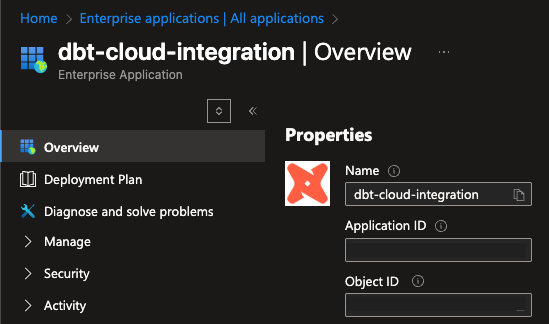 Example of the dbt-cloud-integration app overview
- The current Entra app permissions are:
profileopenidoffline_accessTeam.ReadBasic.AllTeamsActivity.SendChannelMessage.SendChannelMessage.Read.AllChannel.ReadBasic.All
Configure Teams notifications
Once you’ve connected dbt platform and Teams, you can configure which Teams channels receive job notifications. The Teams notifications menu requires that you have an active integration with Teams on the account.
Currently, dbt only sends notifications to Teams channels (standard, shared, or private) that you belong to.
- In the dbt platform, click your profile icon and select Notification settings.
- Select Teams notifications in the left sidebar.
- From the first dropdown, select the Notification team that you want to send notifications to.
- From the second dropdown, select the Notification channel you want to send notifications to.
- dbt platform only sends notifications to Teams channels (standard, shared, or private) that you belong to.
- In the dropdown, choose the environment for the jobs you want to receive notifications about.
- Click Edit on the top right to configure the Teams job notification settings and customize which job statuses trigger job notifications.
- When finished, click Save.
Your Teams channel is now set up to receive dbt job notifications!
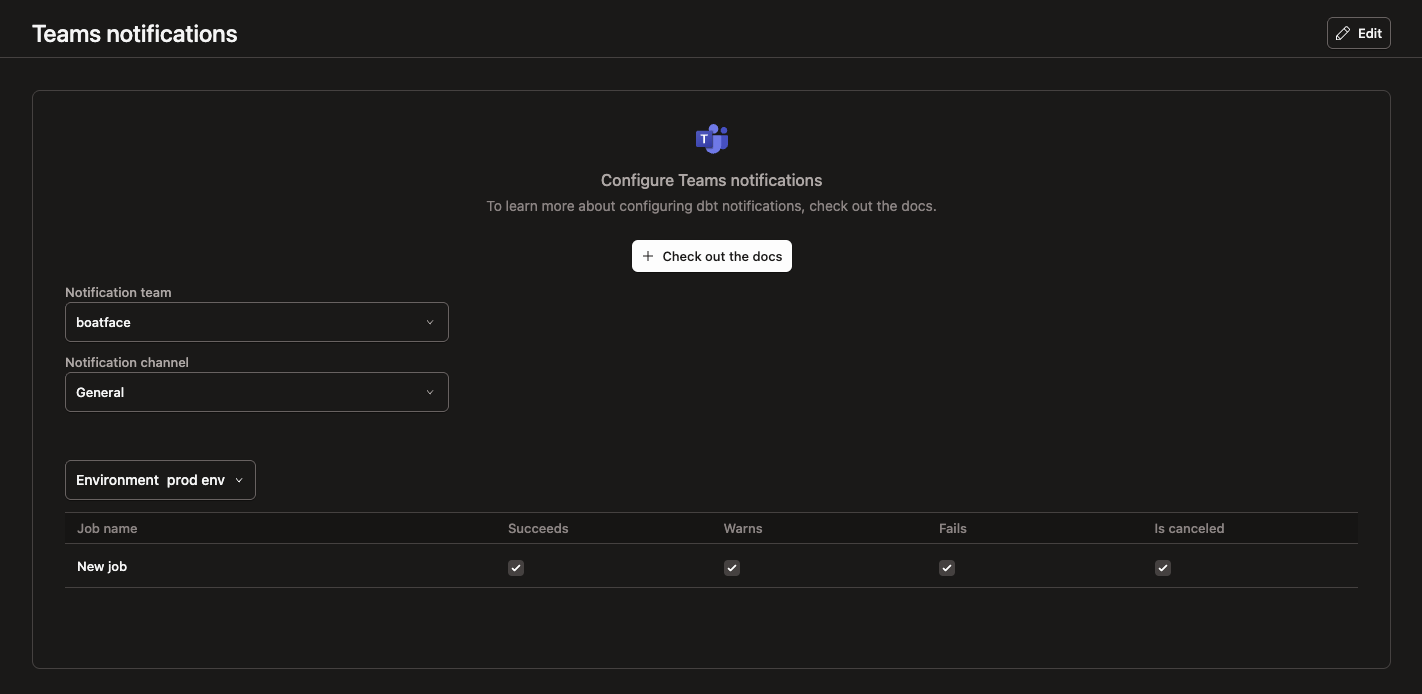 Example of the configure Teams notification page
Disable the Teams integration
Disabling and unlinking the Teams integration in the dbt platform removes it for the entire account. To disable it:
- In the dbt platform, go to Account settings.
- Click on Integrations and scroll down to OAuth.
- On the far right of the Teams integration, click the X icon.
- Confirm the unlinking by selecting Unlink.
The Teams integration has been disabled. You can always re-enable the integration by following the Set up Microsoft Teams steps.
Was this page helpful?
This site is protected by reCAPTCHA and the Google Privacy Policy and Terms of Service apply.